Charge codes are what employees book time and expenses against. They are built up from a few pieces, so it helps to see how they fit together before setting them up.
The building blocks
- Labels (“timesheet drop-down labels”) are the categories you charge against — for example Customer/Job or Service Item. Each label holds a list of entries (the actual selectable values, like a specific project or task).
- Pay types classify hours under a fixed set of heads — Regular, Overtime, Double Overtime, and Leave Related.
- An authorized charge code is the thing an employee actually picks on a timesheet. It’s a combination: one entry from each label, optionally a pay type, and a billable flag. In the app these read as entries joined with
›(for exampleApollo › Design). - An assignment grants a user or a group the right to charge a given authorized charge code over a date range, with optional pay and bill rates.
All four live under Charge Code Setup in the sidebar: Charge Codes, Pay Types, Charge Code Mapping, and Assignments.
Setting them up
- Create labels and entries — on Manage Charge Codes, add a label, then add entries under it (each with a name, effective start date, optional end date, and a billable default).
- Create pay types — on Manage Pay Types, add values under the Regular / Overtime / Double Overtime / Leave Related heads (used when your account tracks time by pay type).
- Map the codes — on Charge Code Mapping, click Map Codes and pick the entries (and pay types, if enabled) to combine into authorized charge codes.
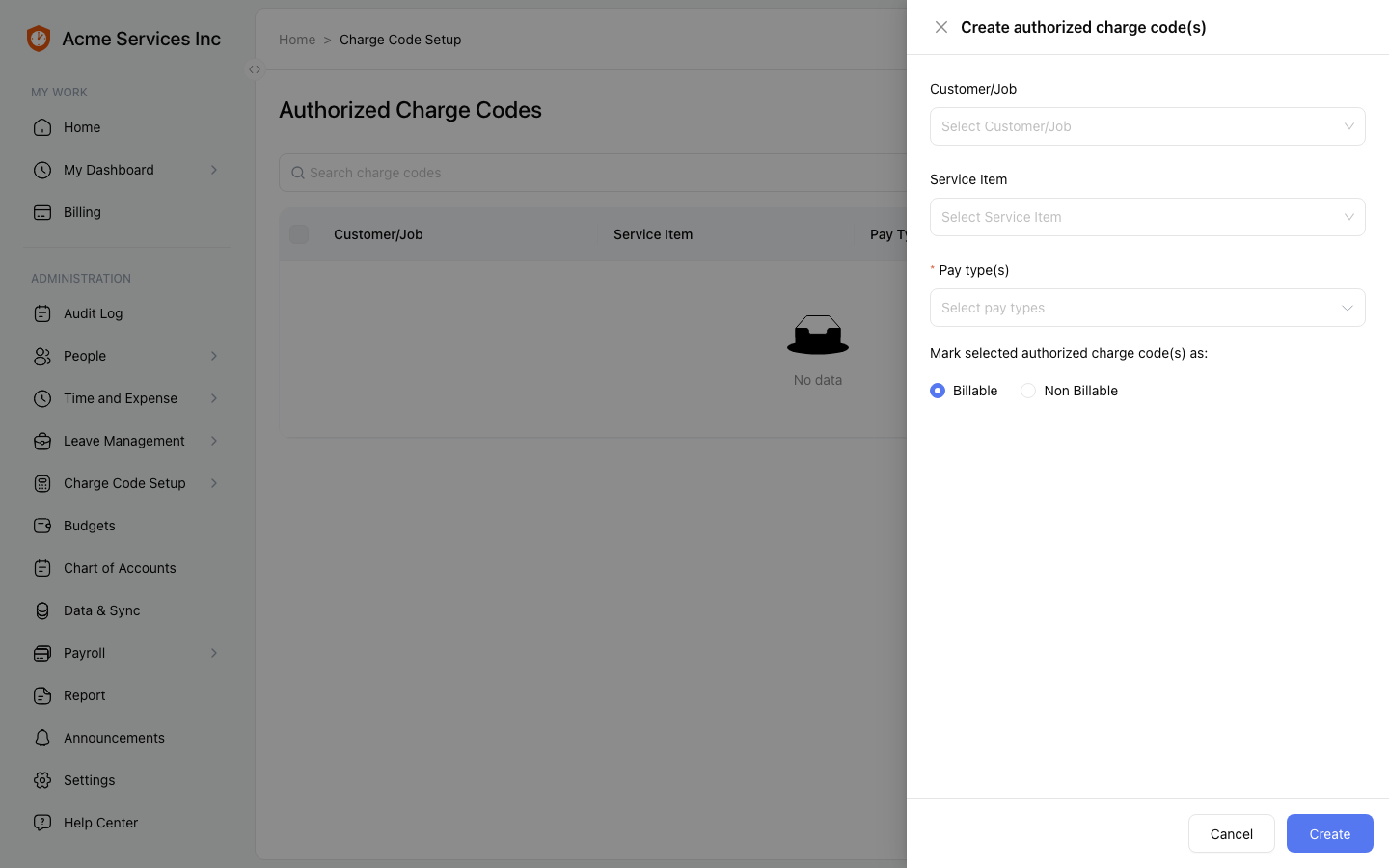
Map Codes combines label entries (and pay types) into the codes employees can charge.
- Assign to people — on Assignments, click Assign charge code, choose the authorized charge code(s), a start effective date, optional bill/pay rates, and the employees or groups who may charge them.
Note
A few rules to know. Label and entry names must be unique within their scope; an entry’s end date can’t be before its start date. A label can’t be deleted while it’s still in use. When your account tracks pay types, mapping a code requires a pay type; when it doesn’t, you leave pay types off. Expired or inactive codes stay visible with a warning marker rather than disappearing.
Related
- Timesheets — entering, submitting, and approving — where employees pick a charge code.
- Tracking and approving expenses — expenses are charged the same way.