A travel questionnaire is an ordered set of typed questions attached to a leave type. When an employee requests that leave, they answer the questions right on the request. The answers travel with the request, persist, and appear to the approver — so approval decisions are made with the full picture.
This is the government-contracting capture that answers the usual travel-leave questions: where are you going, is it government-funded, CONUS or OCONUS, when are you back.
Build a questionnaire on a leave type
- Go to Leave Management → Leave Type.
- Create or edit a leave type (for example, “Travel Leave”).
- In the questionnaire builder, add questions. Each question has:
- a label (what the employee sees),
- a type — Text, Yes/No, Select, or Date,
- a Required toggle, and
- options, for Select questions.
- Drag to reorder. Click Save.
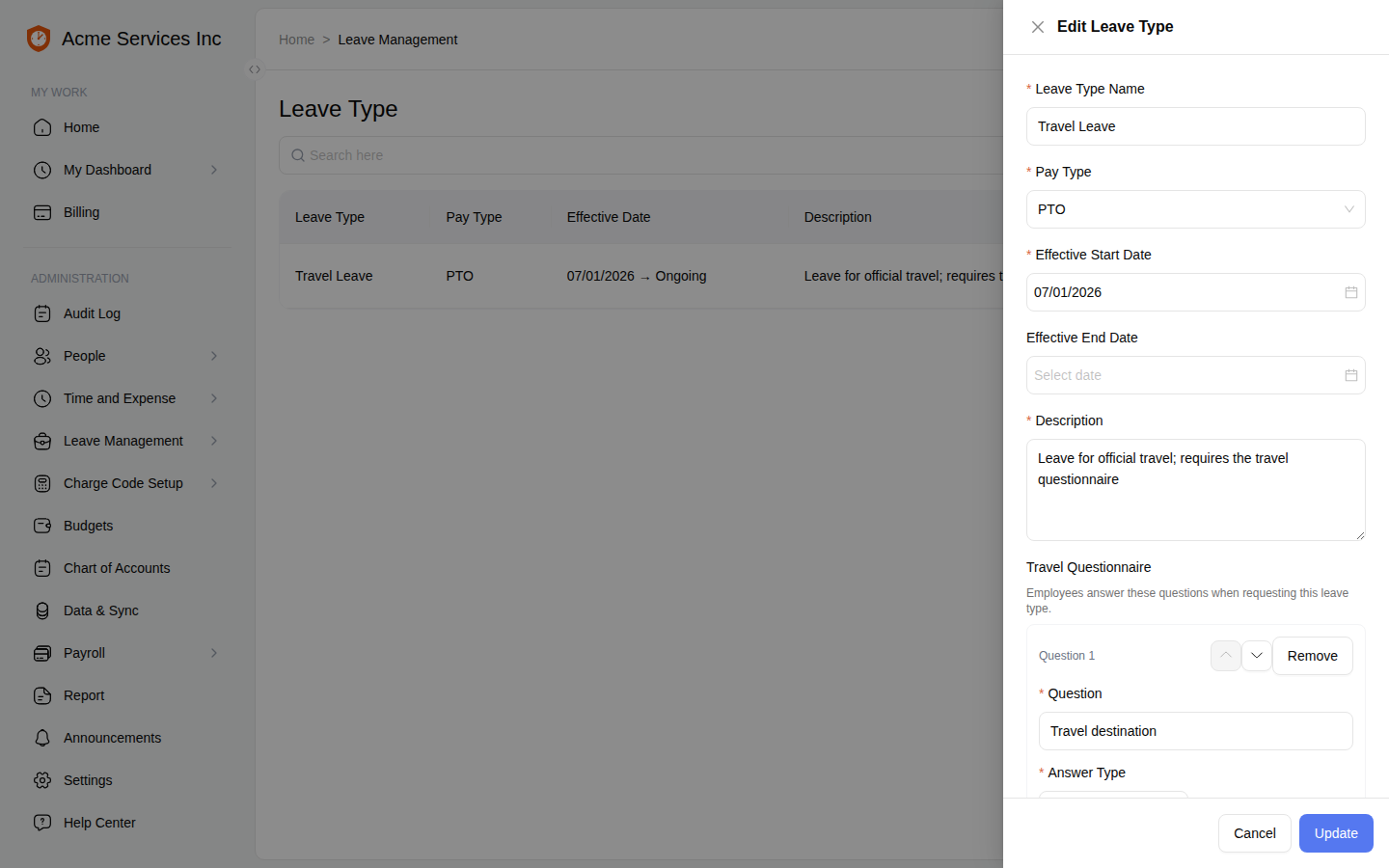
Add typed, reorderable questions with a per-question Required toggle. Yes/No questions always record an answer, so Required is forced off with a short explanation.
The leave type saves with its questionnaire attached.
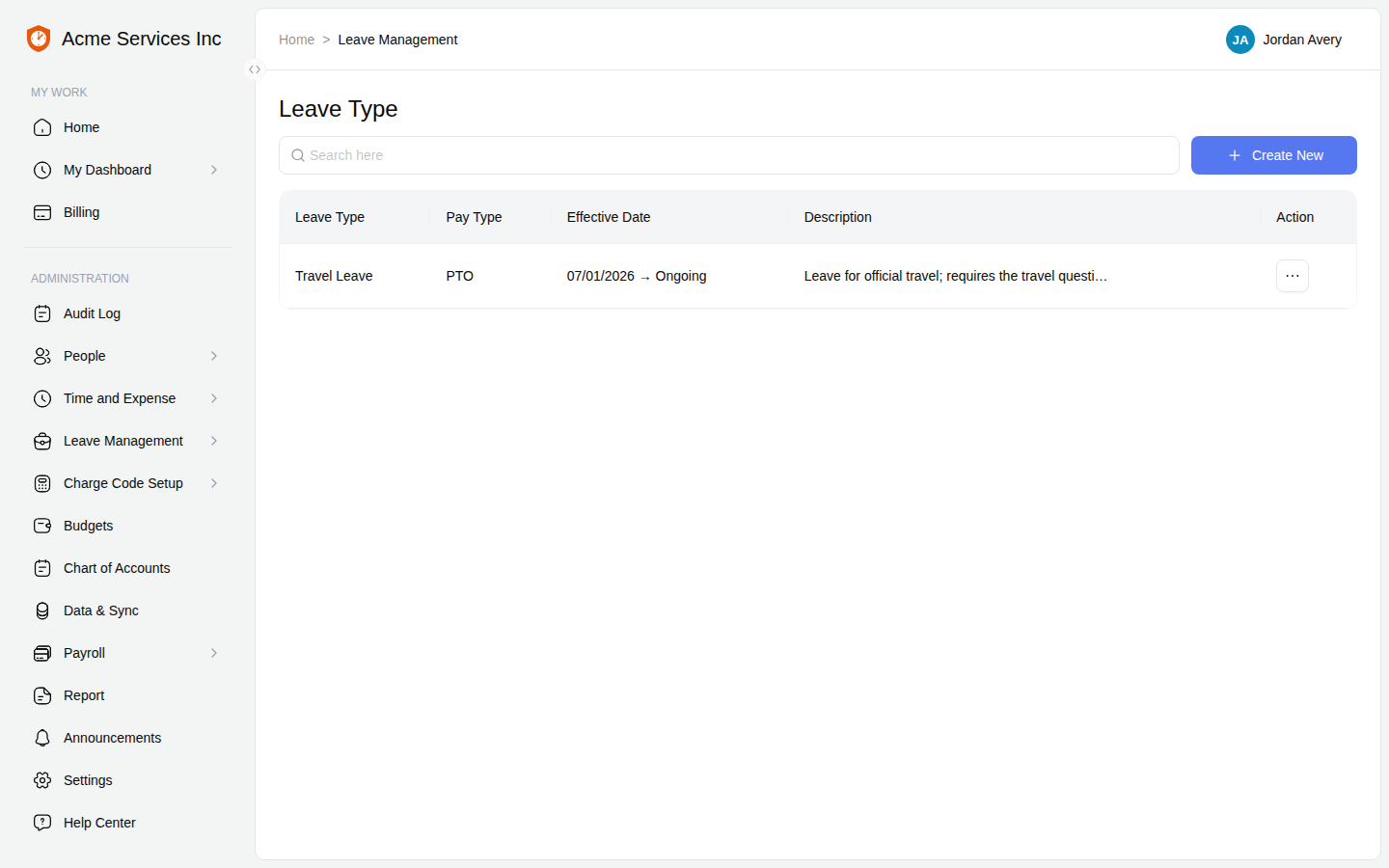
Saved — the leave type now carries its questionnaire.
Tip
Yes/No questions always store an answer (unchecked means “No”), so the builder turns Required off for them automatically — there’s nothing to enforce.
What the employee sees
When requesting that leave type, the employee answers the questionnaire inline. Required questions block submission until they’re filled in — on both the form and the server, so the rule can’t be bypassed.
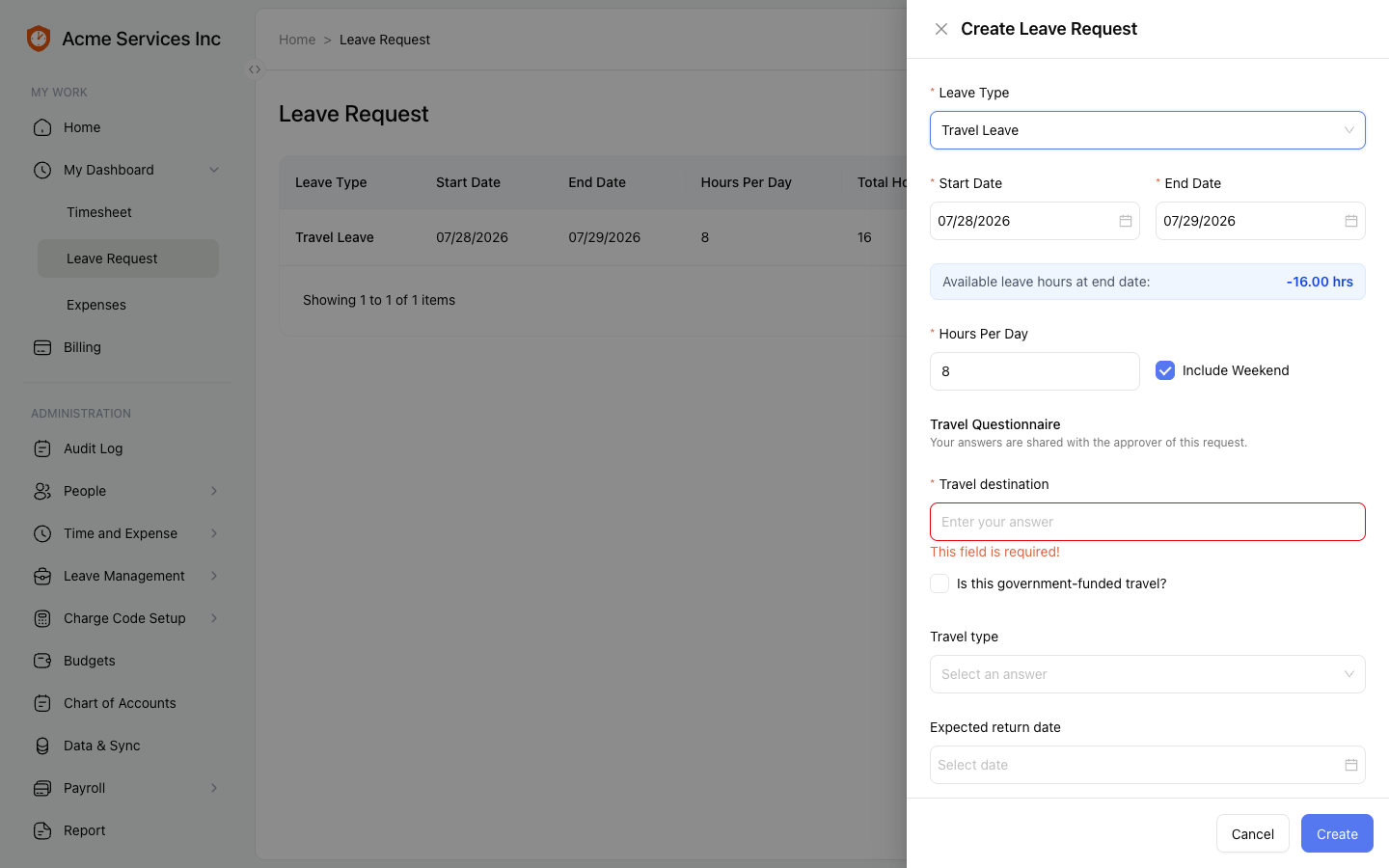
Required questions block submission until they’re answered.
Answers persist with the request. Reopening a request to edit it prefills every stored answer — text, Yes/No, Select, and Date — so nothing is lost between edits.
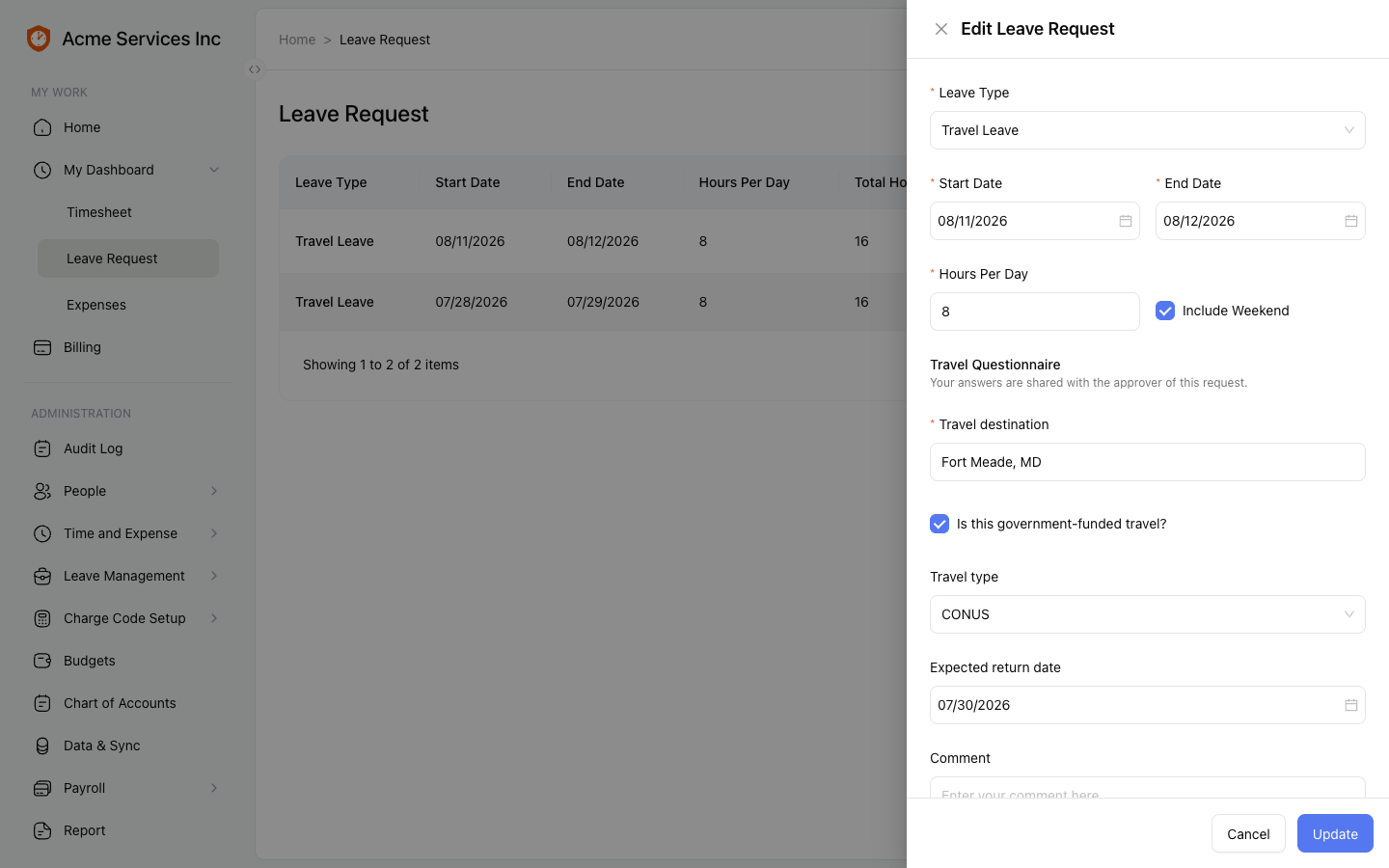
Reopening a request prefills every stored answer, in the right input type.
What the approver sees
In the approve/reject dialog, the employee’s answers appear with their question labels and human formatting — “Yes” for a checked box, 07/30/2026 for a date — above the approval-reason field. The approver decides with the travel context in front of them.
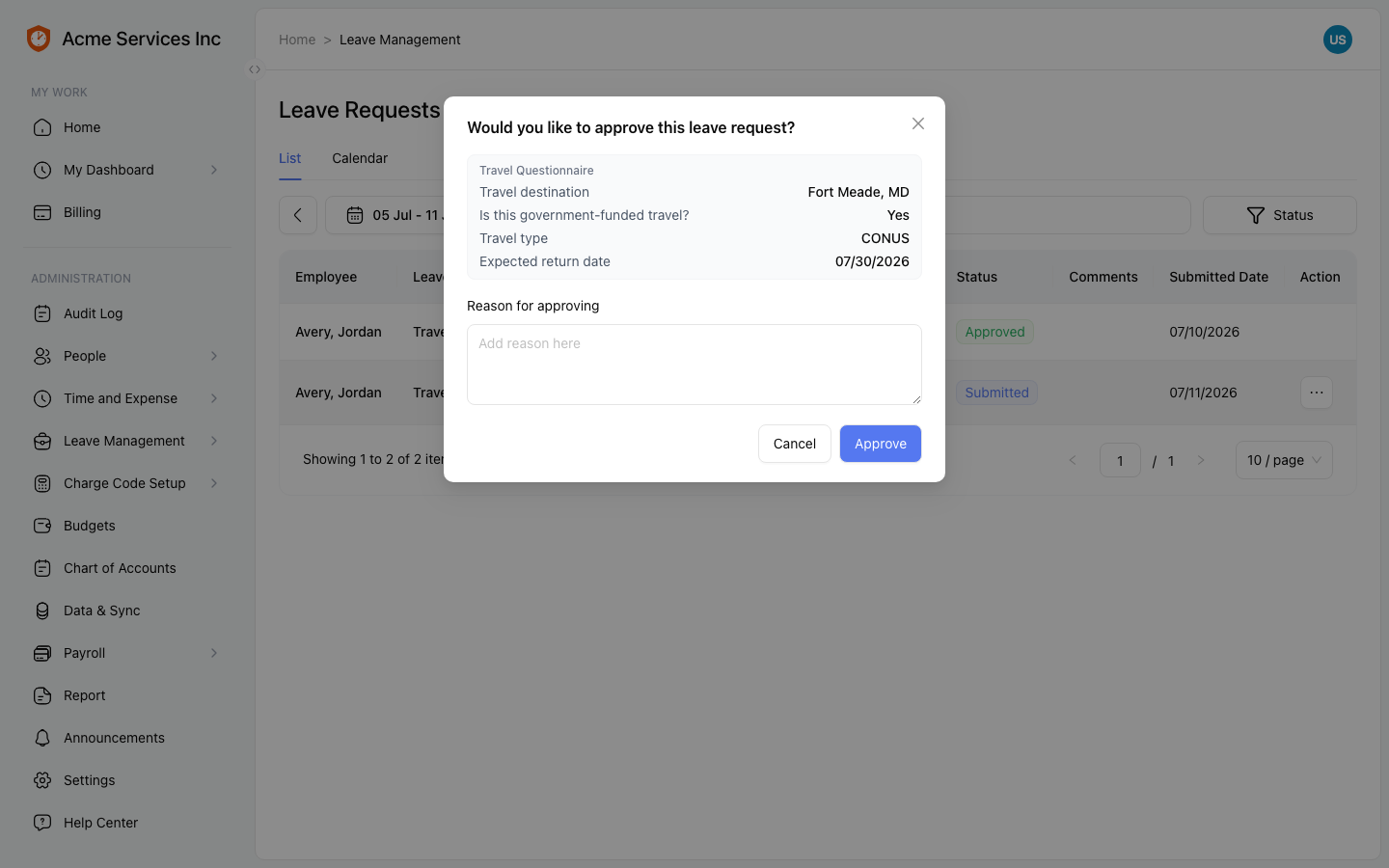
The approver sees labelled, human-formatted answers before deciding.
Turning questionnaires on or off
Travel questionnaires are controlled per account by a single switch: Settings → Leave → “Enable travel questionnaires on leave types.” When it’s on, the questionnaire builder appears in the leave-type drawer.
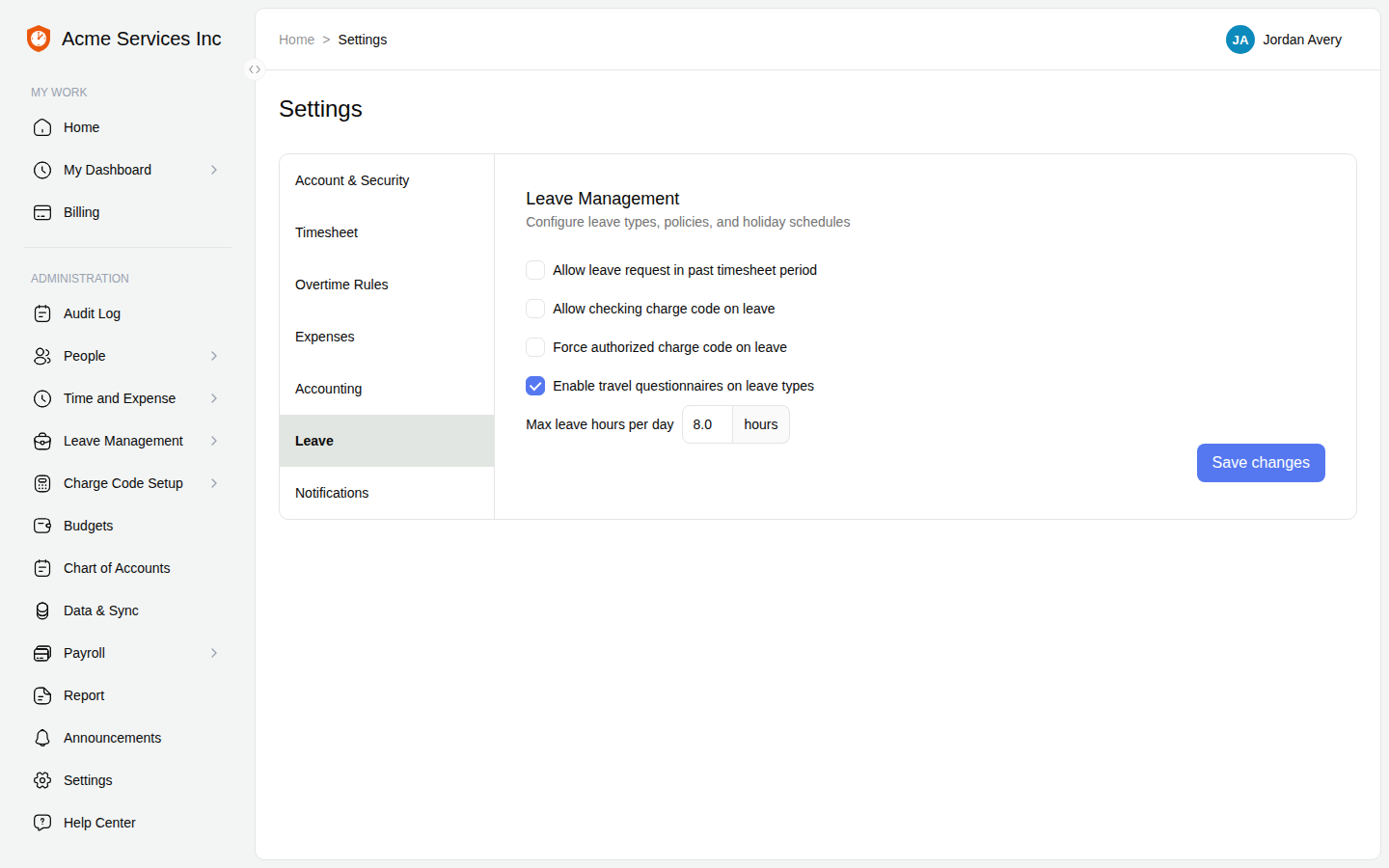
The account-level switch lives in Settings → Leave — an admin turns travel questionnaires on or off here.
Note
Default state. Depending on how your account is set up, this may be on or off by default — an admin can change it at any time with the same toggle. Turning it off hides the builder; questionnaires already attached are preserved, not deleted.
Related
- Leave waiting periods — hold a leave type until an employee is eligible.
- Team PTO calendar — see approved and pending leave.
- Product overview — a map of every area.