Overtime rules define when hours cross into overtime and double time. Setting those thresholds by hand is easy to get wrong — and for a government contractor, getting it wrong is a compliance problem. The State overtime preset selector fills in a state’s legal thresholds for you and locks them, so a rule can’t drift out of compliance while you’re editing it.
Create a rule with a preset
- Go to Overtime → Manage overtime rules.
- Click Create new.
- In State overtime preset, choose a state.
- Review the thresholds — they fill in automatically.
- Choose the pay types the rule applies to (this stays in your hands).
- Click Save.
California
Picking California applies the full set of California thresholds and checks them for you:
- Daily overtime at 8 hours
- Double overtime at 12 hours
- Weekly overtime at 40 hours
- Seventh-consecutive-day overtime
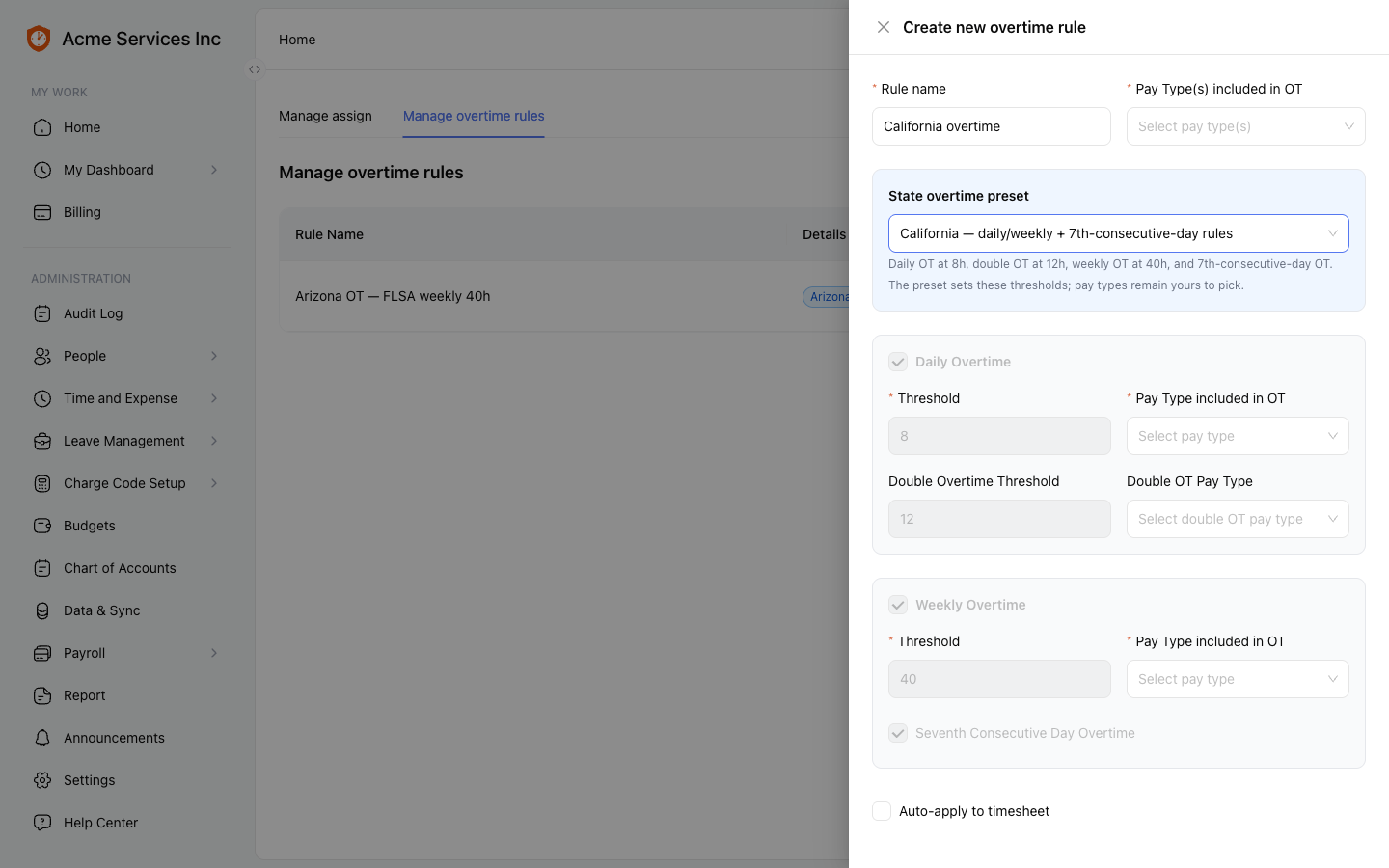
The California preset fills in every threshold and locks it. Pay types stay editable, and the helper text spells out exactly what was set.
Arizona
Arizona has no state overtime law, so federal FLSA rules apply: weekly overtime at 40 hours only. When you pick Arizona, the daily, double-time, and seventh-day controls disable themselves, and helper text explains why.
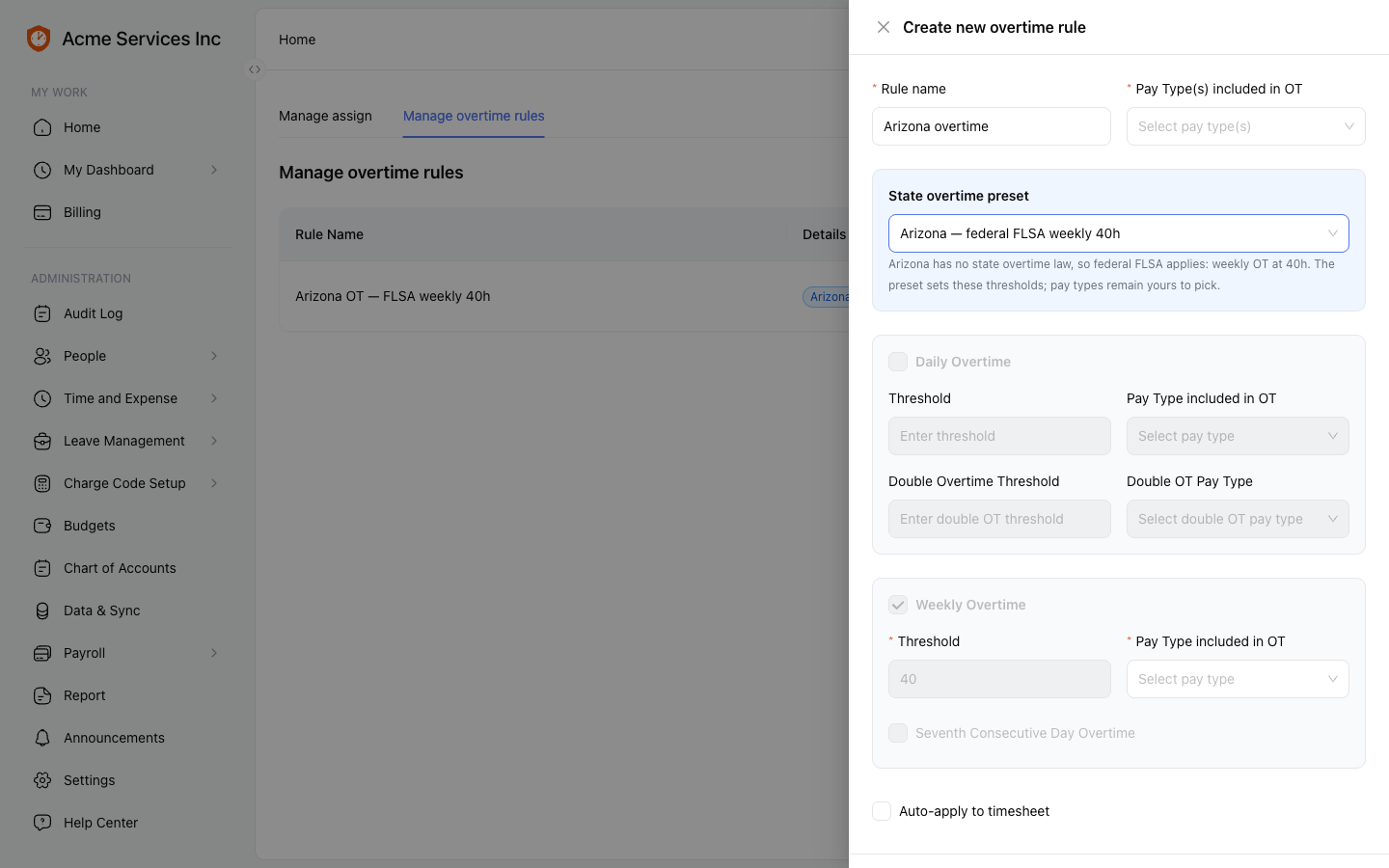
Arizona falls back to the federal FLSA weekly-40 rule. The daily/double/seventh-day controls disable, with copy explaining the fallback.
Tip
Choose None (custom) to keep the fully manual path — every threshold stays editable and nothing is locked. Use it when a rule doesn’t map to a single state’s law.
After you save
The rule appears in the Manage overtime rules table with its state tag and a summary of its thresholds, so you can see at a glance which rule follows which state’s law.
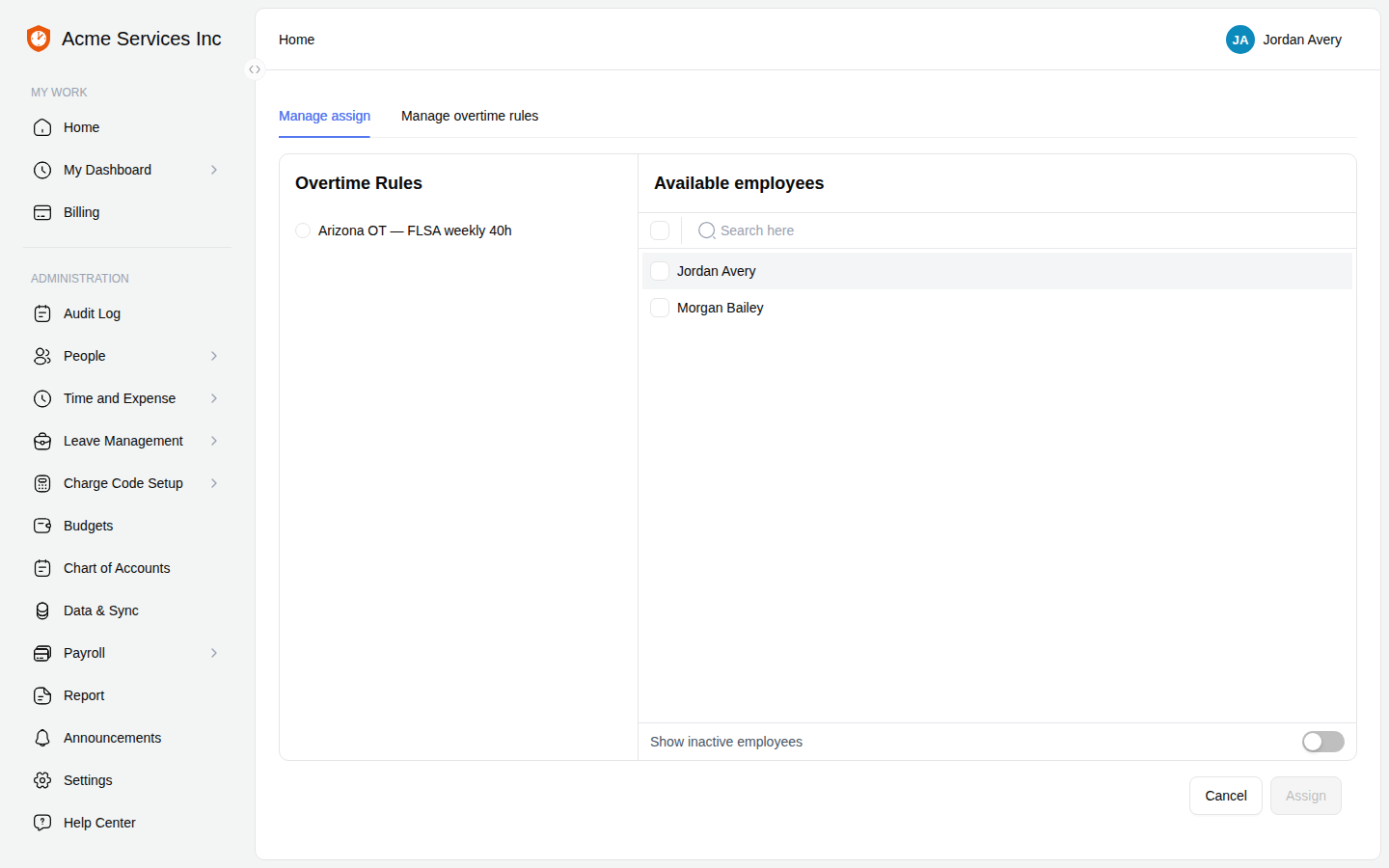
The saved rule lists with its state tag and threshold summary — the preset choice round-trips through the system.
Note
The preset controls the thresholds (when overtime starts). Which pay types the rule applies to is always your choice — presets never change that.
Related
- Timesheets — entering, submitting, and approving — where Regular, OT, and Double-OT hours show up.
- Product overview — a map of every area.