Everyone who uses the app is a user with one or more roles. A role is a bundle of permissions, and each permission is a resource (like Timesheet or Expense), an action (View, Create, Edit, Delete, Approve, Export), and a scope that decides whose records it covers.
Adding and inviting people
Open People → User List to see everyone in the account, their role, status, and type.
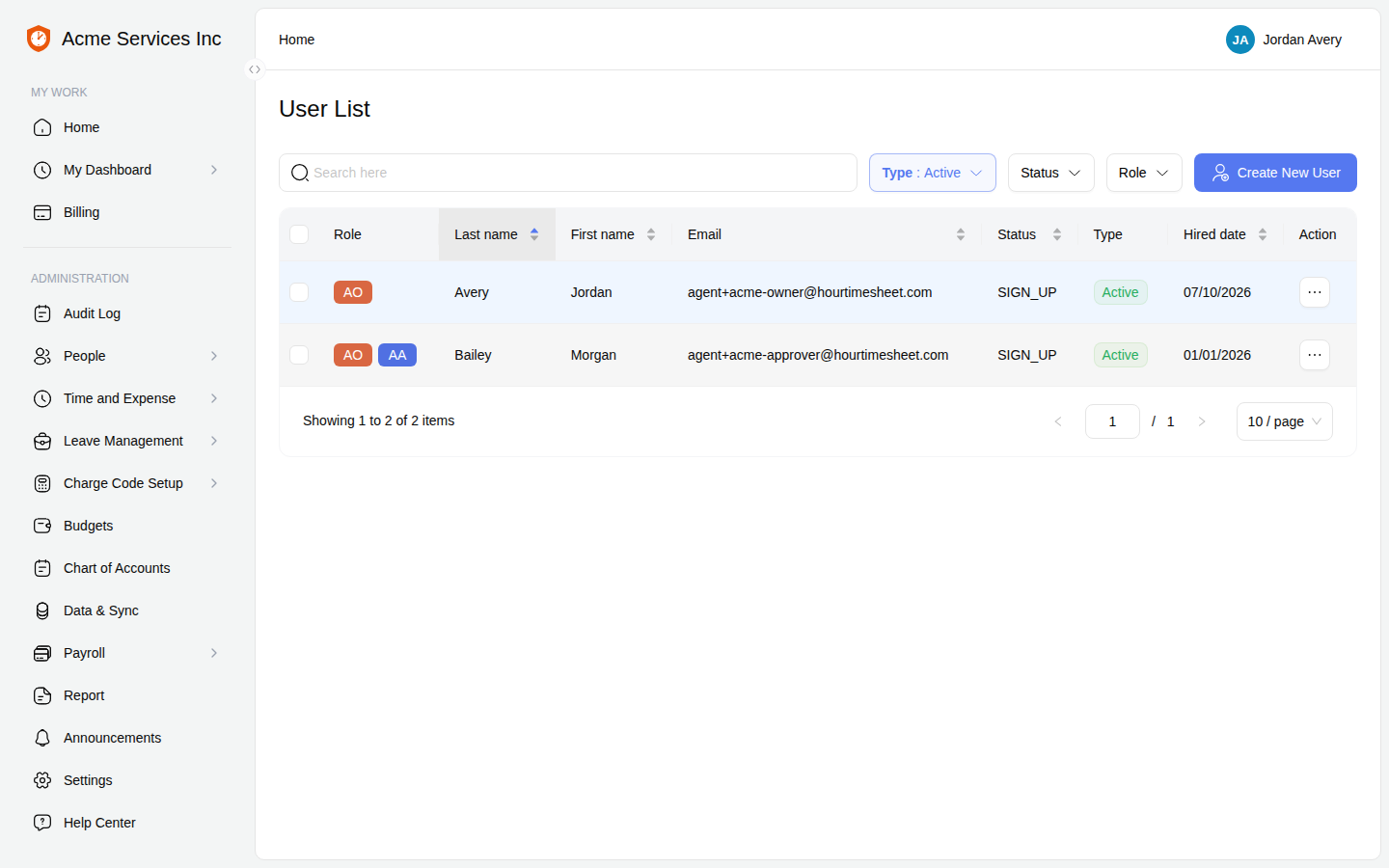
User List: add, invite, edit, or deactivate people.
Click Create New User, fill in the required details (name, user ID, time zone, hire date) and optionally a role, then create the user. From a user’s action menu you can Send invite / Resend invite (emails them a sign-up link), Edit their details, or Mark Inactive — users are deactivated, never deleted, so their history stays intact.
Roles and scopes
The account comes with built-in roles — Account Owner, Account Admin, Payroll Admin, Accountant, Manager, and Employee — and you can create your own custom roles. Each permission’s scope controls how much it reaches:
- Self — only the user’s own records.
- Group — records of people in the user’s group(s); a Manager’s reach follows the groups they manage.
- All — the entire account.
Open People → Roles Setting to see the roles and their permission grid. Custom roles are configured cell by cell — for each resource and action, choose a scope of Self, Group, All, or None.
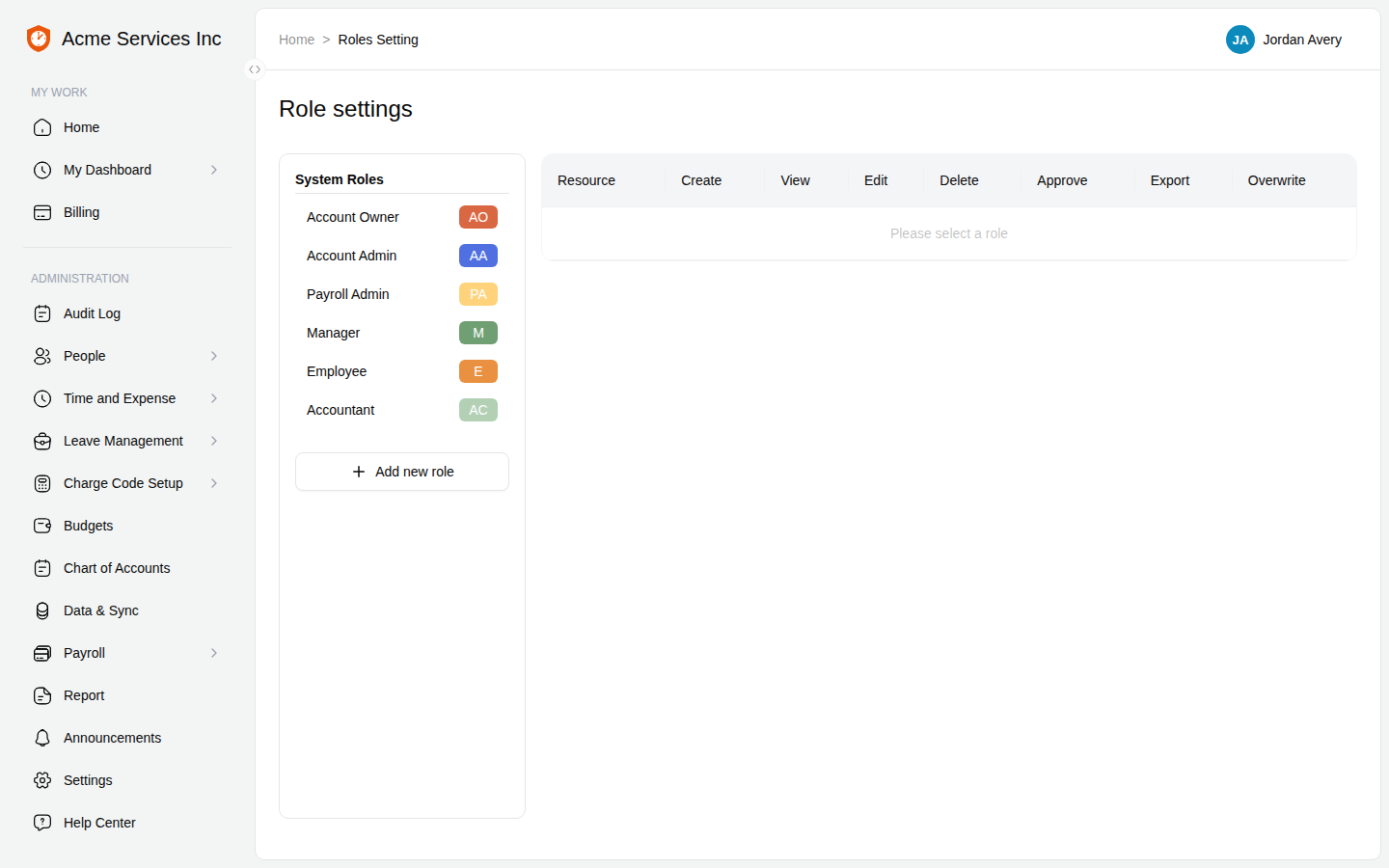
Roles Setting: build custom roles by setting a scope per resource and action.
Note
Guardrails on the built-in roles. The Account Owner role can never be edited, reset, or deleted — it’s the recovery safety net. Only the Account Owner can customize the other built-in roles’ permissions, and an admin role always keeps enough Role permissions to reach this screen and undo a change. Built-in roles can’t be deleted; only custom roles can.
Groups and vendors
- Group Setting lets you build a tree of groups, add members, and name group managers — groups are how Group scope and manager oversight are defined.
- Vendor manages outside payees; a vendor can be flagged as a contractor, and a contractor can additionally be added as a user.
Related
- Timesheets — entering, submitting, and approving — approval permissions and the “can’t approve your own” rule.
- Charge codes, pay types, and assignments — assigning charge codes to users and groups.