The Report screen turns your timekeeping, leave, expense, and payroll data into downloadable reports. You pick a report type and filters on the left, generate it, and download the result on the right.
What’s available
- Printable Timesheet — a per-employee timesheet, with optional clock in/out and audit detail.
- Employee Hours and Daily Detail Hours — hours by employee, pay type, and day.
- Clock In/Out Hours — clock-in and clock-out times and totals.
- Job Costing and Labor Cost Distribution — hours and cost by charge code, cost type, and GL account.
- Leave Balance — beginning, accrued, used, and current balance per leave type.
- Expense — expenses by payee, type, account, and billable status.
- Audit Log — a record of who did what, when.
Generating a report
Open Report from the sidebar.
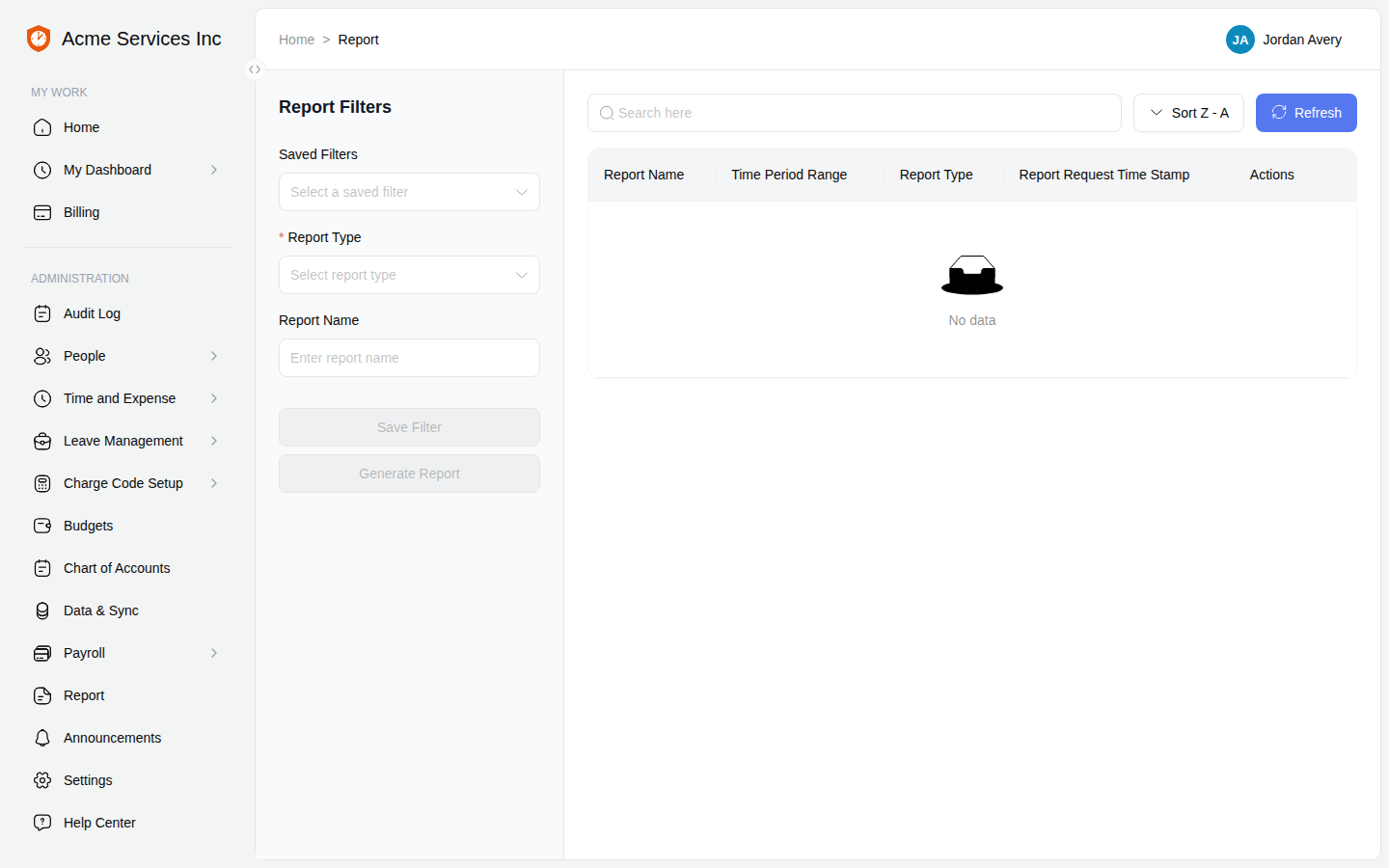
Report: pick a report type and filters on the left, then Generate Report.
- Choose a Report Type (or start from a Saved Filter).
- Fill in the filters that appear for that type — a date range or period, employees (optionally by group), a group-by dimension, billable status, and type-specific options like vendors, payees, or accounts.
- Optionally give it a Report Name, then click Generate Report.
- The report builds in the background. Use Refresh on the results table until its download links appear.
Downloading
In the results table’s Actions column, click PDF, Excel, or CSV to download. Not every report offers every format — the printable timesheet, employee hours, and expense reports produce PDF, while several detailed reports are Excel-only. You can also save a set of filters as a reusable Saved Filter, and delete reports you no longer need.
Note
A couple of limits. A report’s date range can span at most one year. Reports are generated on demand — there’s no scheduled or emailed delivery — so generate one whenever you need the latest numbers.
Related
- Timesheets — entering, submitting, and approving — the source of hours reports.
- Tracking and approving expenses — the source of the Expense report.