A timesheet records the hours an employee worked against charge codes for a pay period, then moves through an approval workflow. Employees enter and submit their own time; approvers review and approve it.
Entering time
Open My Dashboard → My Timesheet. The header shows the current status (Draft, Submitted, Approved, or Rejected), a period picker with previous/next arrows, and a view switcher — Calendar, List, and a per-period grid.
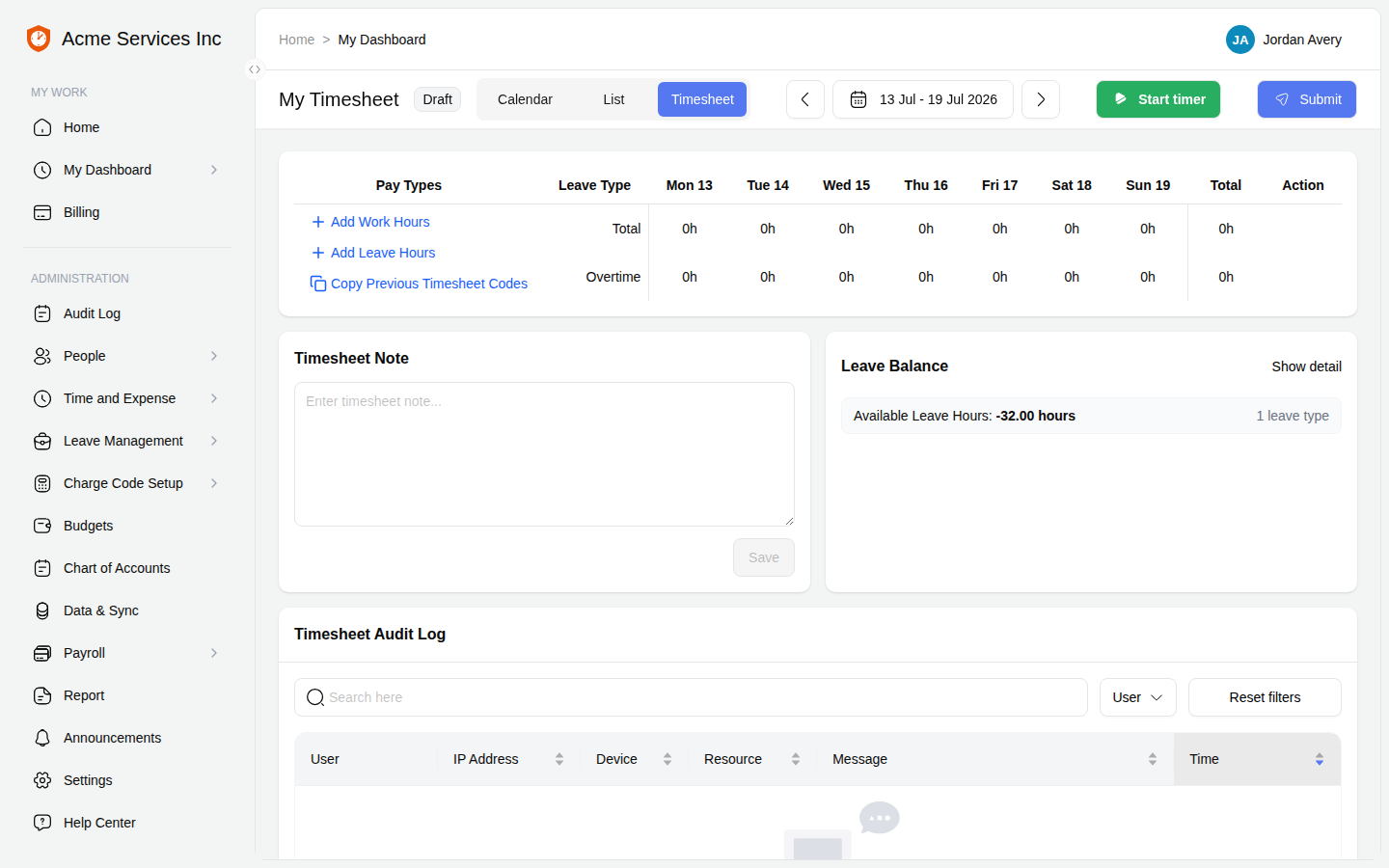
My Timesheet: enter hours against pay types across the week, then Submit.
In the grid you can:
- Add Work Hours — add a row for a charge code and type hours per day.
- Add Leave Hours — record approved leave against a leave type.
- Copy Previous Timesheet Codes — carry your last period’s charge codes forward so you only fill in the hours.
- Start timer — clock in and out live, when your account has the timer enabled.
Adding an individual entry opens a dialog with Date, Start/End times, a Charge code picker, an optional Description, a Billable flag, and a Note. The running Leave Balance panel shows how much leave you have left.
Submitting
When your hours are complete, click Submit. Depending on your account settings you may be asked to acknowledge an attestation statement before the timesheet is submitted. Once submitted, the timesheet locks for editing — to change it you can Unsubmit (pull it back) or, if it has already been approved and exported, start a Correction, which opens a new version while preserving the record of the original.
Note
What you can edit depends on the state. A Draft or Rejected timesheet is fully editable. A Submitted or Approved timesheet is locked; use Unsubmit, Unapprove, or Create Correction to make further changes. While a payroll run that includes the timesheet is in progress, the timesheet is locked entirely.
Reviewing and approving
Approvers open Time and Expense → Timesheet Review, a table of everyone’s timesheets with totals broken out by Regular, OT, Double OT, and Leave hours, plus each one’s status.
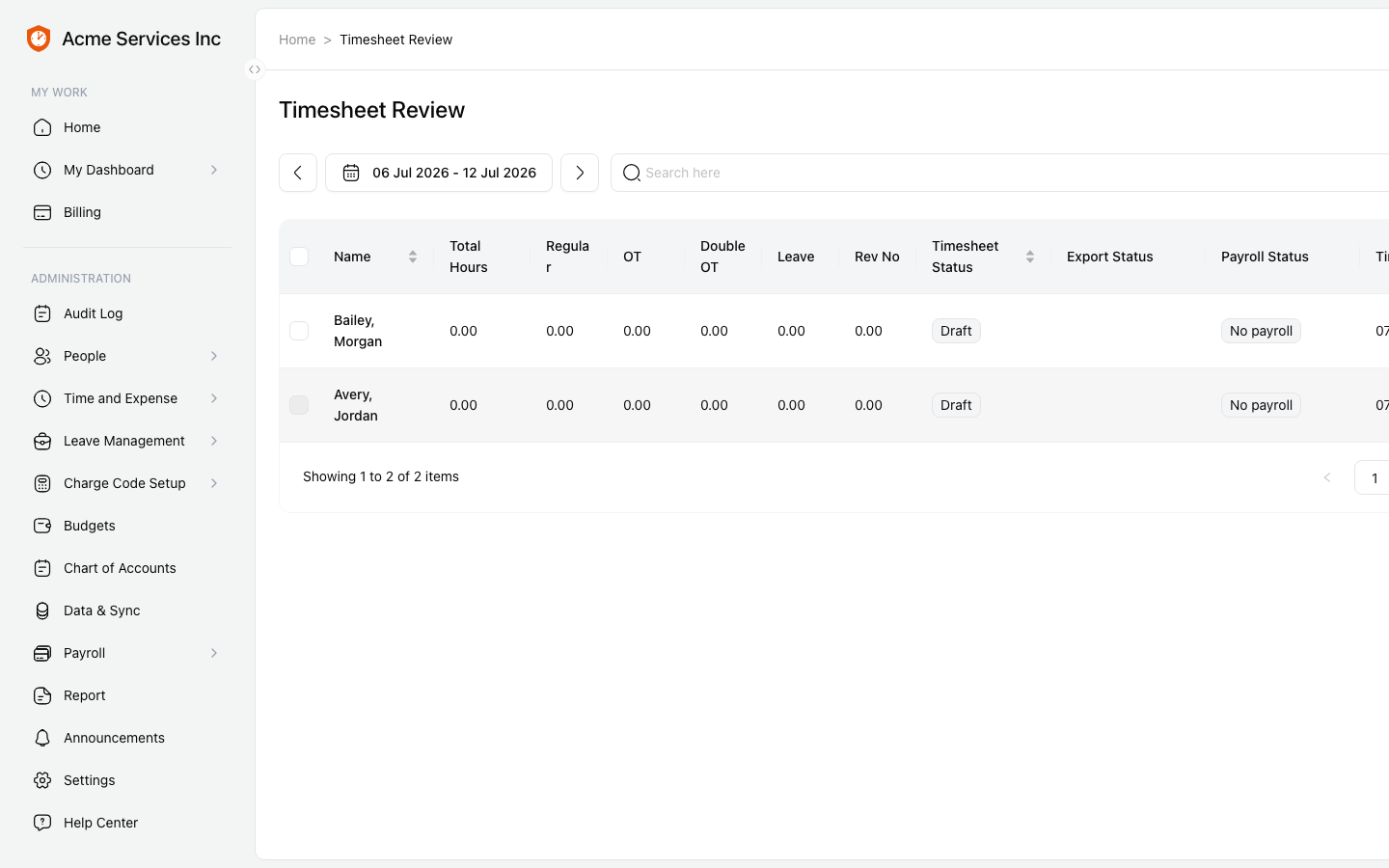
Approvers review each timesheet and Approve, Reject, or send it back.
From a row’s action menu (or the detail view) an approver can Approve, Reject (a reason is required), or Unapprove to reopen it. Rejecting returns the timesheet to the employee with the reason attached.
Note
You can’t approve your own timesheet. Approve and Reject are disabled on your own row — timekeeping requires a separate reviewer. If your account uses multi-level approval, a timesheet becomes Approved only once the required number of distinct approvers have signed off.
Related
- State overtime presets — how Regular / OT / Double-OT hours are calculated.
- Charge codes, pay types, and assignments — what you can charge time against.
- Generating and exporting reports — timesheet, job-costing, and hours reports.