Hour Timesheet streamlines the migration process, ensuring accuracy and compliance. In just a few simple steps, companies can be migrated and made eligible for payroll. The system enhances workflows and helps maintain compliance throughout the process.
Prerequisites
To ensure a seamless Payroll flow and fulfill user requirements, the following conditions must be met:
The user's timesheet period must align with the payroll period.
Payroll for contractors cannot be processed at this time. [coming soon]
Steps to Migrate a Company Using Hour Timesheet
Step 1. Enable the Payroll Feature: Send an email to support@hourtimesheet.com so that we can activate the Payroll feature on our end.
Step 2. Access Payroll Settings: Navigate to the left-hand menu and select Payroll Settings to begin the migration process.
Step 3. Initiate Migration: Click on Yes, Start the Migration Process to proceed with the migration.
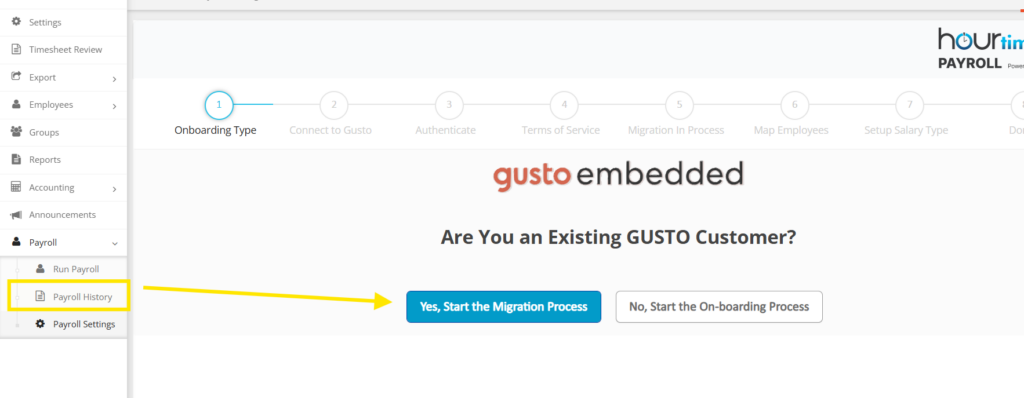
Step 4. Connect to Gusto
Click Connect to Gusto.
A pop-up window will appear where you’ll need to enter the company’s Gusto login credentials and click Login.
The pop-up will close automatically, and the migration process will begin running in the background.
Map Employee Emails: Once the migration is in progress, employees mapping will be displayed. Map the employee emails in Gusto with their corresponding emails in HTS.
Set Up Salary Types: In the Set Up Salary Type step, only salaried employees will be shown. Map their salary types:
If an employee is paid a fixed salary regardless of hours worked, select Fixed Salary.
If an employee salary is paid based on the number of hours worked, select Variable Salary.
Complete the Process: Click Next to finalize the migration. Your company is now ready to run payroll in Hour Timesheet